Tool review
Aurora Canvas: what it is, what it costs, and how to start
A browser-based image generator aimed at people who need a usable product shot, not a toy demo. The free tier resets monthly and is generous enough to finish one small project before you decide to pay.
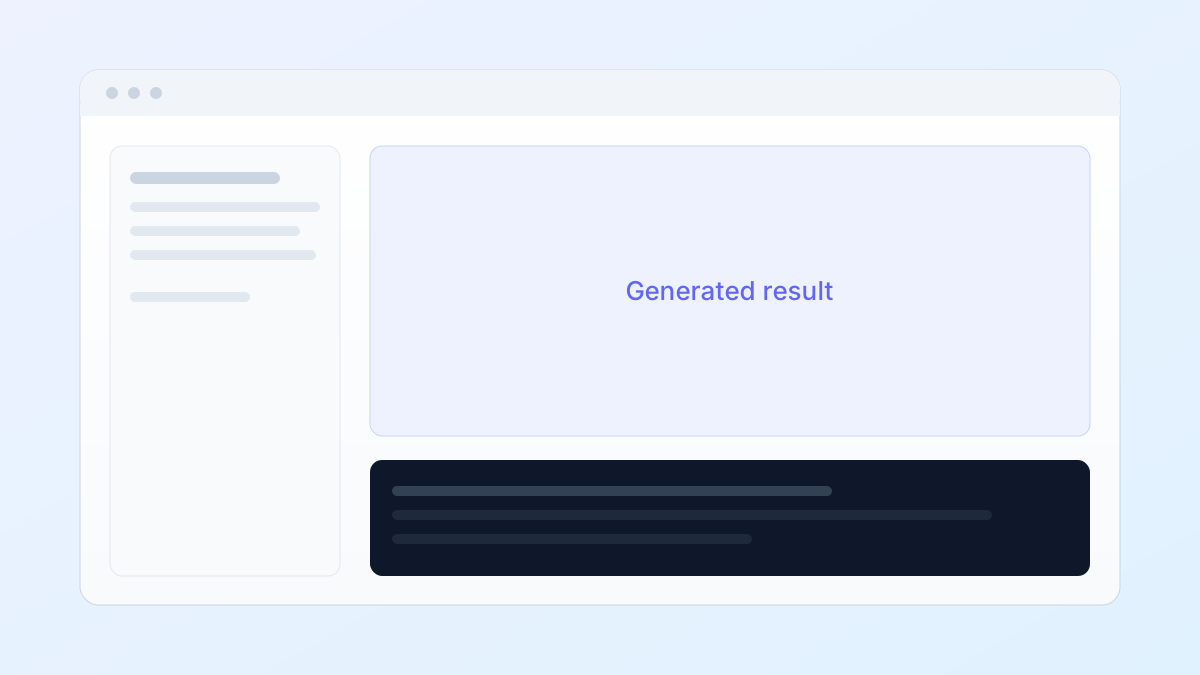
Aurora Canvas is a browser image generator built around one workflow: you already have a photo of a real object, and you need it to look like it was shot somewhere else. That is a narrower promise than “generate anything”, and it is why the tool is useful — it refuses to invent the product, and spends its capacity on light instead.
Most image generators ask you to describe the whole scene. This one asks you to describe the difference between your photo and the photo you want. Once that clicks, the prompt gets shorter, not longer.
Who it fits
If you sell physical products and shoot them on a phone, this replaces a lightbox for most listing images. If you need photorealistic hands, faces or text inside the image, look elsewhere — the reference constraint that makes products stable makes people stiff.
For heavy local work, pair it with an open model you can run yourself: our Nimbus 7B setup guide covers the VRAM numbers and the one command that starts it.
What the free tier really covers
Sixty credits a month at one credit per image is sixty images. In practice that is one finished project: four rounds of four variants, plus retries for the two prompts that came out wrong. It is enough to decide whether the tool fits your work, which is the point of a free tier.
Two limits matter more than the credit count. Free generations may be shown in the public gallery, and batch size is capped at four. Neither is a blocker for evaluation; both are reasons to upgrade before you use it on client work.
Where it falls short
- Long prompts degrade fast. Past roughly forty words the model starts ignoring clauses, so say one thing per sentence.
- Text on packaging is unreliable. If the label is legible in the reference it usually survives; if you ask for new text, it will be mush.
- Shadows are the giveaway. Generated shadows are cleaner than real ones, so add a little grain after export.
Bottom line
For product and listing photography, this is the shortest path from a phone photo to something you can publish, and the free tier is honest about its limits. For illustration, it is the wrong tool — the reference constraint fights you the whole way.
If you want the full workflow, the product photo tutorial takes the same tool from a raw phone image to a finished listing asset.
What it actually does
Reference-guided generation
Upload one product photo and the model keeps the shape, label layout and material while you change the scene around it.
Scene presets
Twelve lighting setups (studio, window light, hard sun, neon) that map to prompt tokens instead of being separate models.
Batch variants
Generate four variations of the same prompt in one request, which is the fastest way to find a usable seed.
Layer export
Export subject, shadow and background as separate PNGs at 2x, so the result can be finished in a normal editor.
How to get your first result
Create an account and check your credits
Sign up with email. The account page shows 60 credits, and each 1024px image costs one credit. Nothing is charged until you add a card.
1Upload a reference photo
Drag a photo of the object onto the canvas. Crop tightly around the product; loose crops make the model invent edges.
2Write the scene, not the object
The reference already carries the object, so the prompt should describe only light, surface and framing. Copy the template below.
3Generate four variants, then export
Pick the variant with the cleanest shadow, then export layers at 2x for retouching.
4
Free tier and pricing
| Plan | Price | What you get | Best for |
|---|---|---|---|
| Free | $0 | 60 credits per month | Finishing one small project before committing |
| Creator | $12 per month | 600 credits, private generations | Weekly product listings |
| Studio | $39 per month | 3,000 credits, shared brand presets | Small teams shipping a catalogue |
Prices checked on 2026-10-23. Plans change without notice — confirm on the official pricing page before you buy.
Aurora Canvas questions
Does the free tier put a watermark on exports?
No. Exports are clean at 1024px. The paid tiers raise the resolution and keep generations out of the public gallery.
How long does one image take?
About nine seconds for four variants at 1024px in our test on a normal home connection. Batch requests queue, so asking for twenty at once is slower than four rounds of four.
Can I use the output commercially?
The terms grant commercial use of anything you generate, but you are responsible for not uploading references you do not own.
What happens when credits run out?
Generation stops. There is no overage charge, and unused credits do not roll over to the next month.
Does it keep my reference images?
They stay in your library until you delete them, and on the free tier generations may appear in the public gallery.
Other tools and guides
How to Make an AI Product Photo (Free, 4 Steps)
You need a phone photo of the actual product, a free image-tool account and about fifteen minutes. The whole method is to keep the product frozen and only change light, surface and framing — everything else goes wrong.
- Sample
- Image generation
- Product photography
Why Evergreen Guides Beat AI News, Even on Traffic
News gets the spike and the spike is real. But a page that is wrong in ten days cannot accumulate links, cannot be improved, and cannot carry a paywall. The durable middle ground is a weekly deep dive tied to an evergreen guide.
- Sample
- Strategy
- Publishing
Nimbus 7B
A 7.2B instruction model with an Apache 2.0 licence and an 8K context window. Small enough to run on a single consumer card, and the first open model in a while whose quantised output does not fall apart on structured tasks.
- Sample
- Text models
- Local deployment